
Troubleshooting Guide
Clara API — Troubleshooting Guide
This guide is intended to help you configure and troubleshoot your integration with the Clara API. It covers the initial setup, mutual TLS (mTLS) requirements, common errors and their solutions, multi-entity usage, and network diagnostics.
Table of Contents
1. Getting Started with Postman
Follow these steps to configure Postman and make your first authenticated request to the Clara API.
Step 1 — Import the API Specification
Download the latest Clara API JSON specification file. This file contains all available endpoints and is required for the Postman configuration.
Open Postman → Import → select the JSON file → all endpoints will be available in your collection.
Step 2 — Configure Certificates
The Clara API requires mTLS on most endpoints. You must configure your client certificates in Postman before making requests.
Go to Postman → Settings → Certificates and add the following:
| Field | Value |
|---|---|
| Host | public-api.<country>.clara.com |
| Port | 443 |
| Client Certificate | Your client public certificate (.crt) |
| Client Key | Your client private key (.key) |
Country codes:
mx= Mexico,co= Colombia,br= BrazilExample host:
public-api.mx.clara.com
Step 3 — Authenticate with OAuth 2.0
The Clara API uses OAuth 2.0. To obtain an access token:
- In Postman, open any endpoint from the collection.
- Go to the Authorization tab and select OAuth 2.0.
- Under Configure New Token, fill in:
- Access Token URL:
https://public-api.<country>.clara.com/oauth/token - Client ID: provided by Clara
- Client Secret: provided by Clara
- Access Token URL:
- Click Get New Access Token and then Use Token.
The resulting JWT will be sent as a Bearer token in the Authorization header on all subsequent requests.
Step 4 — Make Your First Request
With certificates and token in place, you can now call any endpoint. A successful response confirms your setup is correct.
Expected result: HTTP 200 OK with the requested data in the response body.
2. Understanding mTLS
What is mTLS and why does Clara use it?
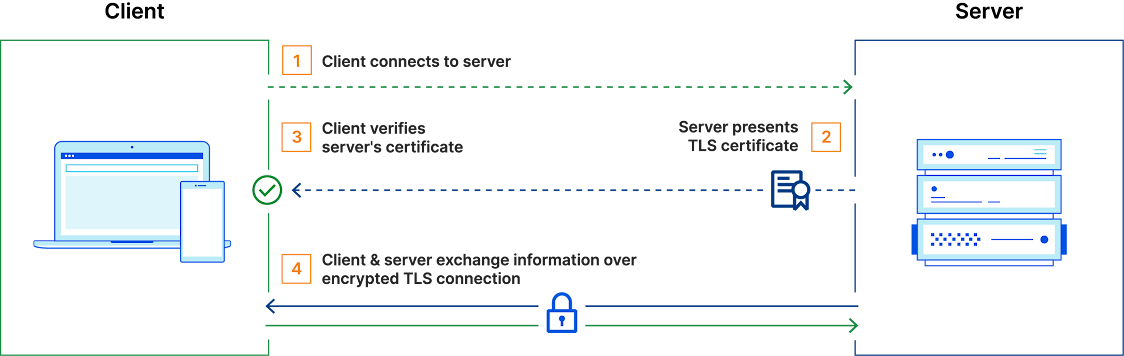
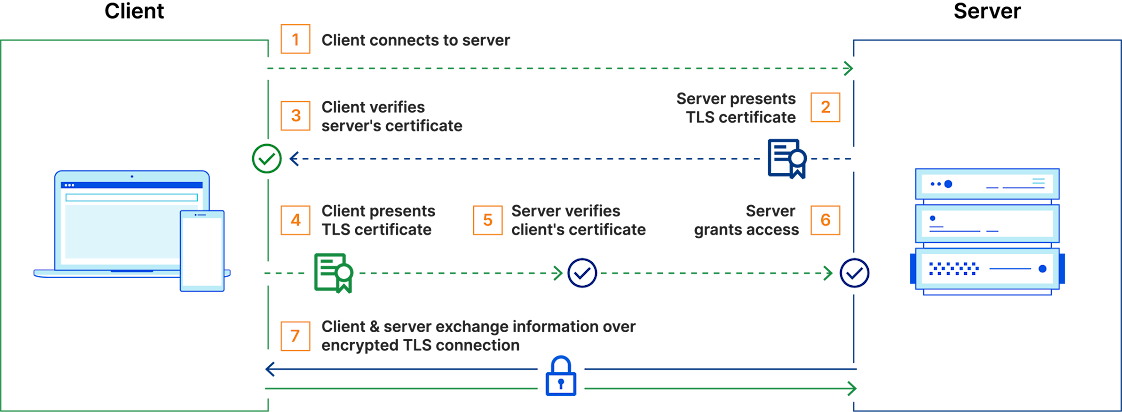
Standard HTTPS (TLS) only requires the server to present a certificate to the client. Mutual TLS (mTLS) goes further — it requires both the server and the client to present valid certificates during the handshake. This provides a strong, certificate-based identity verification for every connection, ensuring that only authorized clients can access the API.
For a deeper explanation, see Cloudflare's guide on mTLS.
Connection Scenarios
Case 1 — No client certificate (incorrect)
The client sends a request without a certificate. The server rejects the connection with HTTP 511.
# This will fail with HTTP 511 on mTLS-protected endpoints
curl -v https://public-api.mx.clara.com/api/v3/transactions \
  -H "Authorization: Bearer <YOUR_ACCESS_TOKEN>"
Case 2 — With client certificate (correct)
The client presents a valid Clara-issued certificate. The connection is accepted.
# Correct configuration
curl -v https://public-api.mx.clara.com/api/v3/transactions \
  --cert /path/to/public-key.crt \
  --key /path/to/private-key.key \
  -H "Authorization: Bearer <YOUR_ACCESS_TOKEN>"
Endpoints that do NOT require mTLS
The following endpoints are accessible without client certificates and can be used to verify basic connectivity:
- Health check:
GET https://public-api.<country>.clara.com/v2/health - Token generation:
POST https://public-api.<country>.clara.com/oauth/token
Use the health check endpoint to confirm network connectivity and TLS configuration before troubleshooting certificate issues.
3. Common Errors and Solutions
HTTP 511 — Network Authentication Required
Cause: No client certificate is being sent.
Solution: Configure your HTTP client to present the Clara-issued client certificate on every request. Simply importing the certificate into your system's keystore is not sufficient — the HTTP client itself must be explicitly configured to use the certificate.
HTTP 406 — Not Acceptable
Cause: A client certificate is being sent, but it was not issued by Clara.
Solution: Verify that you are using the exact certificate provided by Clara. Certificates from other issuers will be rejected.
Java — PKIX Path Building Failed
If you are using a Java-based client and see the following error:
javax.net.ssl.SSLHandshakeException: sun.security.validator.ValidatorException:
PKIX path building failed: sun.security.provider.certpath.SunCertPathBuilderException:
unable to find valid certification path to requested target
Cause: The truststore used by your HTTP client does not contain Clara's CA certificate. Note that this error comes from your client, not from the Clara server.
Steps to resolve:
-
Verify the server certificate chain by running this command from your environment:
openssl s_client -connect public-api.mx.clara.com:443 \
  -servername public-api.mx.clara.com -showcerts </dev/null
The response should show a valid and trusted SSL chain, with acceptable client certificates issued by Clara.
-
Check which truststore your HTTP client is actually using. Even if Clara's CA is imported at the OS level, your Java HTTP client may be using a different truststore (e.g., the JDK's default
cacerts). Confirm this explicitly in your client configuration. -
Test connectivity to the health check endpoint without client certificates first to isolate the truststore problem from the mTLS configuration:
curl -v https://public-api.mx.clara.com/v2/healthExpected result:
HTTP 200 OK. If this fails, the truststore or network configuration needs to be fixed before addressing the client certificate setup.
4. Network Diagnostics
If you are experiencing connectivity issues, please run the following diagnostics directly within the environment where your application is currently running. Once completed, share the output files with the Clara support team. Replace <country> with your region (mx, co, or br).
Windows (PowerShell / CMD)
# 1. Ping (20 packets)
ping public-api.<country>.clara.com -n 20 > ping.txt

# 2. Traceroute
tracert public-api.<country>.clara.com > traceroute.txt

# 3. TCP port test
Test-NetConnection -ComputerName public-api.<country>.clara.com -Port 443 > tcp_test.txt

# 4. Verbose curl (HTTPS debug)
curl -v https://public-api.<country>.clara.com/v2/health > curl.txt 2>&1

# 5. TLS version tests
curl -v --tls-max 1.2 https://public-api.<country>.clara.com/v2/health > curl_tls12.txt 2>&1
curl -v --tls-max 1.3 https://public-api.<country>.clara.com/v2/health > curl_tls13.txt 2>&1

# 6. DNS resolution
nslookup public-api.<country>.clara.com > dns.txt

# 7. OpenSSL TLS handshake (if available)
openssl s_client -connect public-api.<country>.clara.com:443 -servername public-api.<country>.clara.com -brief > sclient.txt 2>&1
Linux / macOS
# 1. Ping (20 packets)
ping -c 20 public-api.<country>.clara.com > ping.txt

# 2. Traceroute
traceroute public-api.<country>.clara.com > traceroute.txt

# 3. MTR (optional, more detailed)
mtr -rwzbc 100 public-api.<country>.clara.com > mtr.txt

# 4. Verbose curl (HTTPS debug)
curl -v https://public-api.<country>.clara.com/v2/health > curl.txt 2>&1

# 5. TLS version tests
curl -v --tls-max 1.2 https://public-api.<country>.clara.com/v2/health > curl_tls12.txt 2>&1
curl -v --tls-max 1.3 https://public-api.<country>.clara.com/v2/health > curl_tls13.txt 2>&1

# 6. DNS resolution
dig public-api.<country>.clara.com > dns.txt
# or
nslookup public-api.<country>.clara.com > dns.txt

# 7. OpenSSL TLS handshake
openssl s_client -connect public-api.<country>.clara.com:443 \
  -servername public-api.<country>.clara.com -brief > sclient.txt 2>&1

# 8. TCP port test
nc -vz public-api.<country>.clara.com 443 > tcp_test.txt 2>&1

# 9. MTU test (optional)
ping -c 4 -M do -s 1400 public-api.<country>.clara.com > mtu.txt 2>&1
If you still experience issues after following this guide, please contact Clara support and attach the diagnostic output files.